
Friday, March 20, 2015
Common Core- The Shift for Teachers
With common core the rigor has increased for students. But what many have overlooked is the increase in rigor it has created for teachers as well. Gone are the days where we flip to page 56 in our books and follow lessons from textbook companies. How is that creating thinkers? So, what that means for educators is times are changing as well. We are now facilitators of learning and not givers of knowledge. We are leading kids to discover their own pathways and learning. That’s not what we’ve always done, so theoretically we won’t get what we’ve always gotten. Imagine the possibilities. Just stop and think about that for a bit. I’m not here to give you knowledge, I’m here to provoke your thinking; facilitate your knowledge. That’s how change will occur. It will come from within you.

Thursday, April 17, 2014
Friday, March 21, 2014
Photo Stream it Up!
I am sick and tired of wasting time trying to keep classroom photos up to date on my website. I need a quick easy way to post my pictures without downloading, uploading, etc... If you've been following my blog you know I HATE wasting time. So, here's my latest solution (if you are an Apple product user)
Follow the instructions below. Then, link your Photo Stream site onto your webpage (ONCE!) and you will always have live, up to date pics!
Now your photos on your web-page will update easily and instantly right from your iOS device!
Was this helpful? Would you like more screen shots? I'd love your feedback!
Questions? Tweet to @jpanga10 Tweet
From an iOS Device (iPad, iPhone)
- Open up Photos
- Click on the Shared Tab (at the bottom in the middle)
- Click on the + sign in the upper left-hand corder
- Name your photo stream, Push Next
- Now, you have the option of adding other iCloud users to your photo stream. If you add other users they will be able to view your photo stream on their phone, iPad, or iPhoto on their MacBook. Since you are making this photo stream public it's up to you if you include anyone
- Select Create
- Now you will see your new photo stream appear in your list under Activity. Select it.
- At the bottom you will see two tabs, select the People tab
- Select the tab next to Public Website and make it green.
- Select share link and email it to yourself (So that you will have it later to add into your website).
- Return to the Photos Tab at the bottom.
- When you click on the + square you will be able to insert photos straight from your camera roll. You can add comments about the pictures for parents!
- Your last step is to add your link to your webpage. If you are using SchoolWires, please feel free to use my tutorial video found at www.dps61.org/techresources under the Web101 tab.
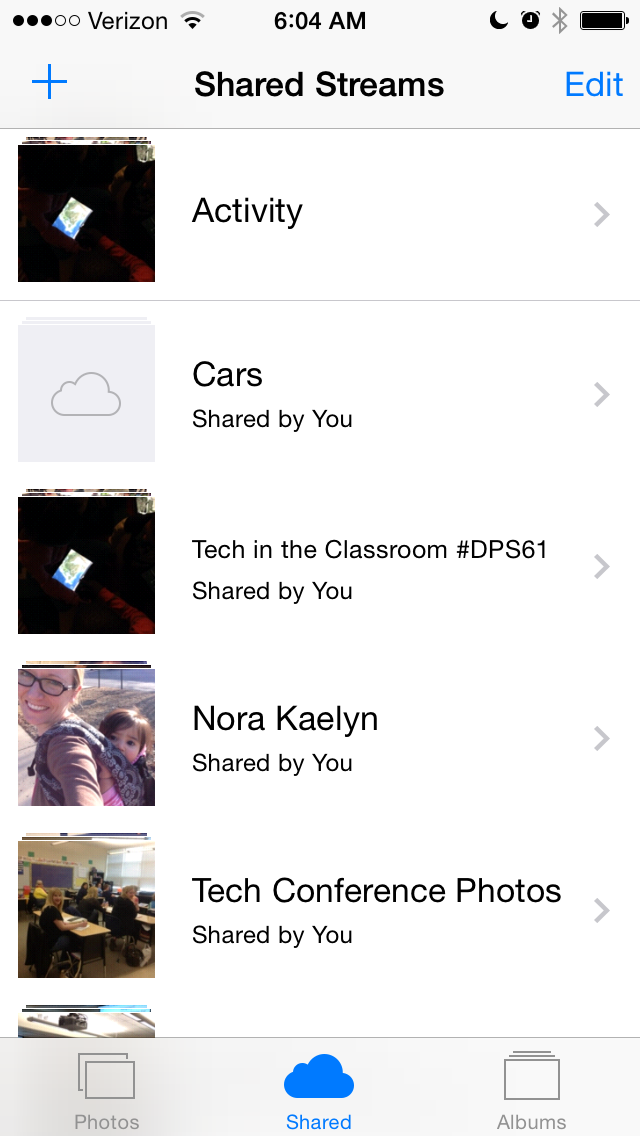
Now your photos on your web-page will update easily and instantly right from your iOS device!
Was this helpful? Would you like more screen shots? I'd love your feedback!
Questions? Tweet to @jpanga10 Tweet
Wednesday, March 12, 2014
Bitly
 I am in LOVE with bitly. I think of it as a cloud-based favorites bar for my Internet sites. I save ALL web resources in bitly so that I can access them anywhere. Bitly also creates tiny URLs and QR codes.
There's also an app http://bit.ly/BitlyAppLink (free).
Quick Directions to Get You Started (I always do promise Quick and Easy!)
1. Go to https://bitly.com
2. Create a free account or log in with Facebook or Twitter. Your choice, just click where you need to to get an account.
3. Now, select and copy the URL you want to bookmark/save/shrink.
4. Return to bitly, past into the top spot.

5. Now this is what you will see.

Here you have some options. I recommend starting with "Add to bundle" This is a way you can organize all of your similar links (like organizing into folders, but they are called bundles)
Also, if you select View Stats you can click on the little QR and print that off to share.
As always, I like to keep it simple, short, and sweet. Bitly is an incredibly powerful tool that can really be used as a major time saver!! I also use it to create bundles for student work. For example, if I have a set of math sites I use for extra fun practice with students when they are finished with work, they are all stored together in a bundle labeled 5th grade interactive math sites. This way, I can quick run to the bundle and print/pull up a QR on the promethean board for the students to scan.
Saturday, February 8, 2014
Rocks or Sucks
Need to get your staff moving? Do they need to get out some tension or just need a chance to share their opinions. Use this!
1. Create a list of "hot topics" for staff to choose if they rock or suck- No in between.
2. One side of the room is "rocks", the other side is for "sucks"
3. State the topic, give 15 seconds for people to move, then give another 15 seconds for them to chat.
4. Then, each side gets a chance to share a reason why they chose rocks or sucks.
5. Repeat with a new topic.
I participated in a session like this at EdCampSTL and it was awesome! What a great way to get people up and moving, and talking! I think this would be awesome for a PLC meeting to allow teachers a chance to be heard. You could also use something similar in your classroom to give your students a voice.
Could you use this to create your classroom expectations?
What about your homework procedures?
What about the learning expectations?
Etc....

1. Create a list of "hot topics" for staff to choose if they rock or suck- No in between.
2. One side of the room is "rocks", the other side is for "sucks"
3. State the topic, give 15 seconds for people to move, then give another 15 seconds for them to chat.
4. Then, each side gets a chance to share a reason why they chose rocks or sucks.
5. Repeat with a new topic.
I participated in a session like this at EdCampSTL and it was awesome! What a great way to get people up and moving, and talking! I think this would be awesome for a PLC meeting to allow teachers a chance to be heard. You could also use something similar in your classroom to give your students a voice.
Could you use this to create your classroom expectations?
What about your homework procedures?
What about the learning expectations?
Etc....
Monday, January 27, 2014
Free Cloud MacBook Back Up- 10 Minutes or Less!
Backing Up Your MacBook Files in the Google Drive Cloud

2. Double click on download

3. Click drag the google drive icon onto the folder icon

4. Go to Finder (click on your desktop) > Go (at the top in the menu bar) >Click on Applications > Double Click on Google drive

5. Click open

6. Click sign in now, go ahead and sign in with your google drive account

7. Click start sync

8. You may have to type in your MacBook user password
9. Now, a google drive folder will appear in your finder. Anything you drag there (hold down the option key- you will see a green plus sign appear then release) will be backed up into your drive account.


Thursday, January 23, 2014
FREE Photo Auto Cloud Back Up
FREE Auto- Cloud Back Up on Your iPhone, iPad
As always, I promise these steps are super quick and easy.. and incredibly functional as well! After following these few simple steps, your photos will auto-back up into the google + cloud. What this means is if your device gets run over by a car, your photos will all be saved, for FREE! Educationally, this means you have quick, easy access to photos your students take with their iPad for computer-based projects. (Tweet me if you’d like more ideas on this)
1. Go to https://plus.google.com
2. Sign in with your gmail, yahoo, or google account and upgrade to a Google + account (it’s free!)
3. Now, download the Google + app on your device (iPhone, iPad) - It’s available for free in the app store when you search for google plus

4. Open the app. Push “get started”

5. Now you can add your google + account that you want to use for auto back up.

6. Make sure the box that says back up existing photos and videos is checked, then select turn on auto back up.

If you already have the google + app and want to do an auto back up follow these directions:
1. Select the = on the upper left hand side of the screen (the app should be open, and you should be signed into your account)
2. Select the gear shifter button on the top right hand side to view your settings.

3. Select camera and photos.

4. Make sure Auto Backup is on.

Now you can view your photos by accessing your Google + account via the Internet.
Access your google plus account (if you aren't sure how to do this just google Google plus)
Click on the small square of 9 squares.
Click on Google +

On the left hand side scroll over where the page says home and some options will appear, click on photos.

Now you can download/organize your photos.
Tuesday, January 14, 2014
QR Quick Checks
Create Quick Checks for Students
Here is a quick, easy way to use QR codes to have students quickly check their work before completing an entire worksheet incorrectly. This also gives them an opportunity to get up and stretch their legs if you put the answer QR checks throughout the classroom.
1. Go to http://goqr.me
2. Type in the answer(s)/text you want for the 1st QR code.
*For example, you may have the answers to questions 1-3 inside the first QR for them to check after they have completed them. On your worksheet you can provide a little visual reminder for students to get up, stretch, and check their work.
3. Right click on the QR code, select copy.
4. Open up a word document, select paste.
5. Label the QR with answers 1-3 (or whatever fits what the QR scans to)
6. Return to the website, delete what you typed previously and repeat as needed.

Monday, January 13, 2014
Test Prep in the Computer Lab
Synonyms and Antonyms Computer Lab Lesson
1. Put students into groups of 5. Each student will need a computer.
2. Pick one person to be the scorekeeper of the group.
3. Have all students open up a Pages/Word document. If you are a google apps for education school I would recommend using a google doc and modifying the lesson a bit!
4. The scorekeeper will type a word.
5. The scorekeeper will say the word and each of the players will then type the word at the top of their page.
6. Now, each of the players will write down as many synonyms and antonyms as he/she can think of for that word. After 1 minute, the score keeper will yell time.
7. Now, each person reads his/her list out loud to the group. For each correct word the student gets a point. If a word used is neither an antonym or synonym, no point is given. (If the group disagrees, they need to look up the word(s) by using right click on the word(s) that need to be defined, then select the “look up” option to view the definition of the word-- on a MacBook the command for a "right click" or "drop down" is a two finger tap on the word)
8. Now, the kids rotate and a new score keeper is chosen. Continue to rotate until each member of the group has been the score keeper.
Here is a link you can give to students for a free timer.
http://www.online-stopwatch.com/countdown-timer/

Wednesday, December 11, 2013
FREE Math Resources
Remember the Staples commercials where the just get to "hit the easy button?" Well, this is pretty much an easy button for great resources!
The Step by Step:
1. Go to http://quantiles.com
2. Click on Use The Quantiles Framework (middle tab, blue)
3. Click on Quantile Teacher Assistant (second gray box)
4. Select Common Core, your grade level, and a standard.
5. If you review each standard you can select "more" (bottom right hand of each column) to view downloadable and digital resources related to each standard!
6. If you know the quantile range of your class (you could get this score from some assessments, for example the Scholastic Math Inventory will give you this information) you can adjust the range of your class at the top of the website. Just move the bar to adjust the range of your class or a small group of students (for example, your intervention group).
This is the VERY simple version of this web resource. These lessons are ready to be taught. If you would like to "kick them up a notch", view the sample below:
The Step by Step:
1. Go to http://quantiles.com
2. Click on Use The Quantiles Framework (middle tab, blue)
3. Click on Quantile Teacher Assistant (second gray box)
4. Select Common Core, your grade level, and a standard.
5. If you review each standard you can select "more" (bottom right hand of each column) to view downloadable and digital resources related to each standard!
6. If you know the quantile range of your class (you could get this score from some assessments, for example the Scholastic Math Inventory will give you this information) you can adjust the range of your class at the top of the website. Just move the bar to adjust the range of your class or a small group of students (for example, your intervention group).
This is the VERY simple version of this web resource. These lessons are ready to be taught. If you would like to "kick them up a notch", view the sample below:
Sample 6th Grade Lesson for Rate and Unit Rate:
If you are interested in learning how to create a lesson similar to this one, tweet me! I used resources from quantiles.com to differentiate the instruction.
Thursday, December 5, 2013
Becoming an Octopus in Your Classroom
Becoming an Octopus in Your Classroom (Growing More Than Two Hands)
Do you have students who need extra help learning specific topics/standards? Do you struggle with only begin able to be in one place at a time? Maybe you could try Learnzillion.
Learnzillion is a website FULL of video lesson resources for students on common core standards. You can search for anything you are looking for and quickly assign it to specific students.
Follow these quick, easy steps and you will be
ready to go in no time.

3. Tell a little bit more information about yourself.
4. Begin your search. Type in something you are looking for. i.e. 2 digit addition

5. Now your search results will appear. Select the lesson/video you would like to use.
(Standards and grade level information is listed below the video)

6. Select the Quick Code option (right hand side of the tabs across the top of the video)

Now, here’s how you get your class there.
2. Search for video lessons for each group of students and get the Quick Code.
3. Have your class go to www.learnzillion.com
4. Provide each group with their quick code.
5. Students put their quick code into the website and their video will appear.
Grouping Students
Here’s one simple way you can provide students with their group information easily, even if the groups change from day to day:
2. Laminate different sheets of colored paper If you want, you could put a QR on these colored sheets of paper that links to www.learnzillion.com (you will need the number of groups you plan to have)
3. Use a dry erase marker each day to write each colored group’s Quick Code onto their paper.
4. Use the clothes pins to direct each student to the appropriate group. (I use these because they are quick and easy to move as students needs differ daily)
Sample 6th Grade Lesson for Rate and Unit Rate:
Wednesday, November 27, 2013
What I'm Thankful For
This week I'm not providing you with a tutorial. Instead I want to talk about what I'm thankful for. I'm thankful for a job that I absolutely love. I'm thankful that I get to go to work everyday to see students wave eagerly at me down the hallways and in their classrooms. "Mrs. P.- you coming to my room today?!" I'm thankful for the excitement they have for adventure. I'm thankful they accept me and my crazy ideas! I'm also incredibly thankful for the wonderful teachers I work with! They allow me to come into their classrooms to try new ideas and ways of thinking. They open their minds to a shift about education. For this, I am grateful. And lastly, because I could go on and on and on , I'm thankful to work in a district that sees the value of technology support for teachers. I work with the most incredible tech team and we stand united on a solid ground of support. As I reflect on my brave decision to leave the classroom to take on a coaching role- I am thankful! So thank you students, thank you teachers, and thank you DPS61. You have provided me with an incredible opportunity to do what I love.


Wednesday, November 20, 2013
Grading Content, Not Layout
Providing Choice is Powerful!
Take a deep look into what you really want your students to be showing you. Do you really care about the "how"? Does it really matter if they write a paper, make a poster, or produce a movie as long as the CONTENT is there?Providing students with guided choices can be incredibly powerful in your classroom. You can still remain in "control" by creating content guidelines for students to follow, and you can allow for choice and creativity by allowing choice for the final product.
Using rubrics for grading can be incredibly powerful. They are also easy to use and provide very clear expectations for students. I urge you though to take a deep look at your rubric and really ensure that it is content-based. The reason I say this is because you only want to be scoring kids on the core-content material. You don't want them to end up with an A because they had a gorgeous, perfectly edited video that did not include any of the content you wanted them to research/learn.

So, here's the how.
1. Create a checklist or rubric of your content expectations.For example: Students need to learn about order of operations
____ Include PEMDAS
____ Include what each letter of PEMDAS stands for
____ Include the PEMDAS order
____ Include the problem your teacher provided for you.
____ Include an explanation of how you solved the problem.
_____ Each step of PEMDAS is clearly labeled/noted in your explanation
____ Restate the PEMDAS explanation/order as a review
____ Include your Name(s) and School Name
2. Provide a few examples to students or ideas of apps/web-based programs they could use.
3. After students have started working ensure that you check in with each group to make sure they are on the right track.
4. Enjoy watching your class really shine as they display their creativity and ideas.
5. Provide time for each group to share out their project.
6. Have reflective conversations about each groups project. You can use TAG to get the conversations going. T- tell something you liked about the project, A- Ask a question, G- Give a suggestion
You will be amazed at some of the ideas students come up with during these reflective conversations. The next time you do a project like this again they will make huge improvements in their work! Remember, this is a learning process and new way of thinking for many kids!
Here's an example I used for a staff meeting. The activity was to take a bunch of note cards (labeled with words of district responsibilities--ie RTI, ISAT, Tier 2, etc) and link them together. Then, they had to create an explanation to explain why they put the cards in the order they did. Here is the checklist and output options sheet they were given.
Teacher Product Samples!
As always, get a hold of me if you need a bit more information or explanation!
Sunday, November 17, 2013
Educreations- The Data Collection App
Data Parents Will WANT To See
One of my favorite apps is Educreations. I love it because no matter what grade or subject you teach I can almost guarantee you I can find a way that your students can use it that will benefit you. If nothing else it's an excellent data collection tool. One of my favorite ways to use Educreations is to collect data samples of students throughout the school year for parent teacher conferences. What type of data you ask? What type of data do you need? Some examples include writing samples, reading/fluency samples, math problem solving, site word reading, etc. The list can go on and on. Now that your brain is flowing full of ideas (I've successfully implemented my "hook") I'll tell you how to get started. No, it's not hard or time consuming.
* Side note * That's something you'll learn about me as you continue to follow my blog. I don't do a lot of time consuming set up things. I understand that teachers don't have a ton of time to implement and test out new things. So, to get you going I will help you use quick easy things to begin your classroom's transformation. After I've hooked you, well, then you will get lost in the world that I live in and the sky won't even limit your possibilities!
Setting up an educreations teacher account:
*This can be done from an iPad or a regular computer.
1. Go to Educreations.com2. Click

3. Click on teacher and follow the steps.
Friday, November 15, 2013
QR Scavenger Hunt in 10 Minutes
Lately it seems as though QR scavenger hunts in DPS 61 have been catching on like wild fire!
(QR Newspaper Article in DPS61)
So easy to set up to get started in your classroom TODAY.. yes, Today, not tomorrow! If you have 10 minutes you can set up a QR scavenger hunt.
Check out this site: QR Scavenger Hunt
You literally type in each question then an * and follow it with the answer. This is the "hook" I use with a lot of teachers. It can be a simple substitution activity (SAMR in 120 seconds) or it can really bump up a few steps with a little thought!

Small Group QR Lesson and Self Check
Small groups are hard to get started in your classroom. How do you give the kids directions? How can you ensure they are learning in the right direction when you are busily working with your RTI small group? Have you ever considered using a QR code as a self check for kids? What if your small group station did a worksheet, then used a QR code that sent them to an answer check? Or maybe even the top of the worksheet has a video tutorial of the skill they are working on?
Steps to get started:
1. Create your worksheet - based on student needs and standards (Duh right?!)
2. Either create a quick lesson explanation (maybe using Educreations) or locate one online
Learnzillion.com
Virtualnerd.com
3. Use a QR generator like bitly.com to create your QR. Bitly will also save all of your links in case you'd like to create bundles to use and share.
4. Create a quick google doc with your answers to your worksheet. *If you use a google doc you can continue to use the same QR for your answers page if you just change the doc every day. Make sure that you open up the rights to the doc to share with anyone who has the link.
5. Use a QR generator to create a QR to your answer page.
6. Print out your worksheet and QRs, cut them out and glue them to your worksheet (or, if you created the worksheet just cut/paste the QRs on your worksheet before printing).
7. Teach your kids the protocol and procedures for the small group station and how to use the QRs.
8. Go work with your small group and let the kids learn with a powerful lesson and self check!
**Worried about your kids going straight to the answers... or do they need a little brain break? Post the Answer QR across the room so they have to get up out of their seat to check their answers. **
Steps to get started:
1. Create your worksheet - based on student needs and standards (Duh right?!)
2. Either create a quick lesson explanation (maybe using Educreations) or locate one online
Learnzillion.com
Virtualnerd.com
3. Use a QR generator like bitly.com to create your QR. Bitly will also save all of your links in case you'd like to create bundles to use and share.
4. Create a quick google doc with your answers to your worksheet. *If you use a google doc you can continue to use the same QR for your answers page if you just change the doc every day. Make sure that you open up the rights to the doc to share with anyone who has the link.
5. Use a QR generator to create a QR to your answer page.
6. Print out your worksheet and QRs, cut them out and glue them to your worksheet (or, if you created the worksheet just cut/paste the QRs on your worksheet before printing).
7. Teach your kids the protocol and procedures for the small group station and how to use the QRs.
8. Go work with your small group and let the kids learn with a powerful lesson and self check!
**Worried about your kids going straight to the answers... or do they need a little brain break? Post the Answer QR across the room so they have to get up out of their seat to check their answers. **
More questions? Doesn't make sense? Get a hold of me!
Thursday, November 14, 2013
IETC 2013
Ok, so here it goes.... They've made a believer out of me. I'm starting this blogging stuff. I guess I do have a lot of resources to share as a tech coach... and quite a crazy life. So here it goes. #inspired #crazyworldouttheretoshare
So this morning has been quite inspirational. I've had a few major take aways. But I still struggle with a bigger picture type of focus. How am I really, truly going to make an impact? What is the one, major thing, I'm going to focus on. As I learned today, multitasking on many things doesn't make me successful at any of them. How do I find focus? What's the key? And then, after I figure it out, how do I get teachers there... and then students??!!

So this morning has been quite inspirational. I've had a few major take aways. But I still struggle with a bigger picture type of focus. How am I really, truly going to make an impact? What is the one, major thing, I'm going to focus on. As I learned today, multitasking on many things doesn't make me successful at any of them. How do I find focus? What's the key? And then, after I figure it out, how do I get teachers there... and then students??!!

Subscribe to:
Posts (Atom)